Ever stared at that terrifying “Storage Full” notification on your phone and felt pure panic? I’ve been there. You want to save your memories, but digging through thousands of files manually is nobody’s idea of a good weekend.
That’s where The PhotoStick comes in. Here at Ossaward, we test a lot of digital storage devices, and this little flash drive has remained one of our absolute favorites because it completely automates the backup process. You plug it in, hit “Go,” and it does the heavy lifting.
But if you’ve just unboxed yours and are wondering exactly how to get started, you’re in the right place. In this complete PhotoStick manual, I’m going to walk you through exactly how to set it up on your Windows PC, Mac, iPhone, and Android device.
Let’s get your photos secured.
What Actually is The PhotoStick?
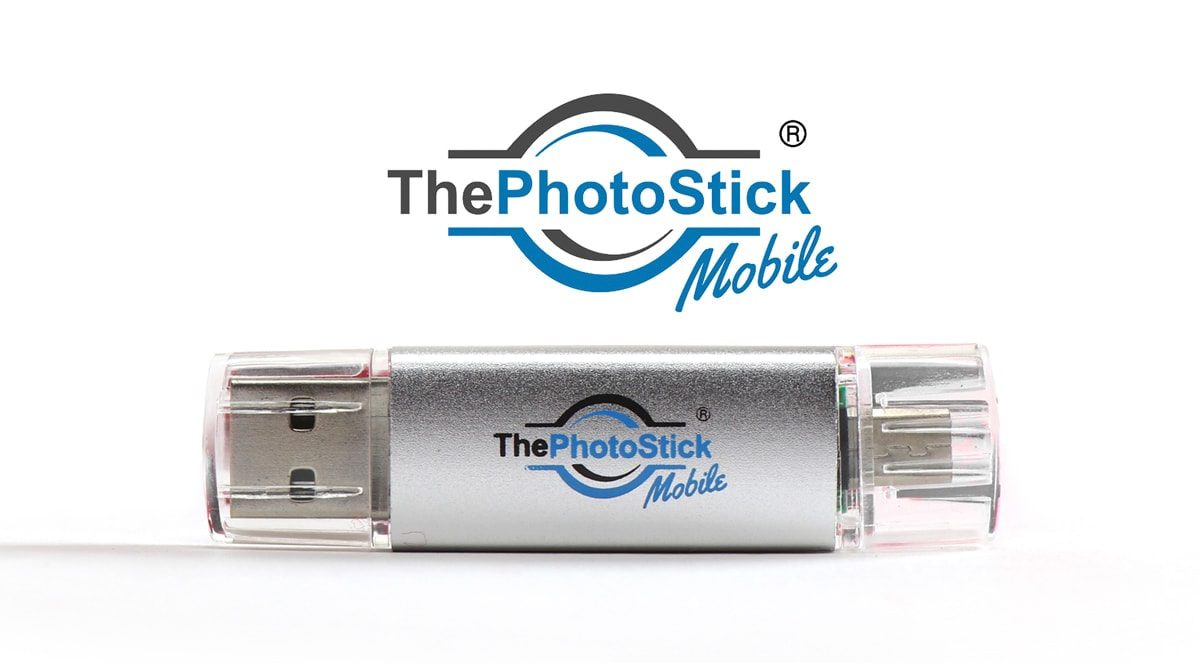
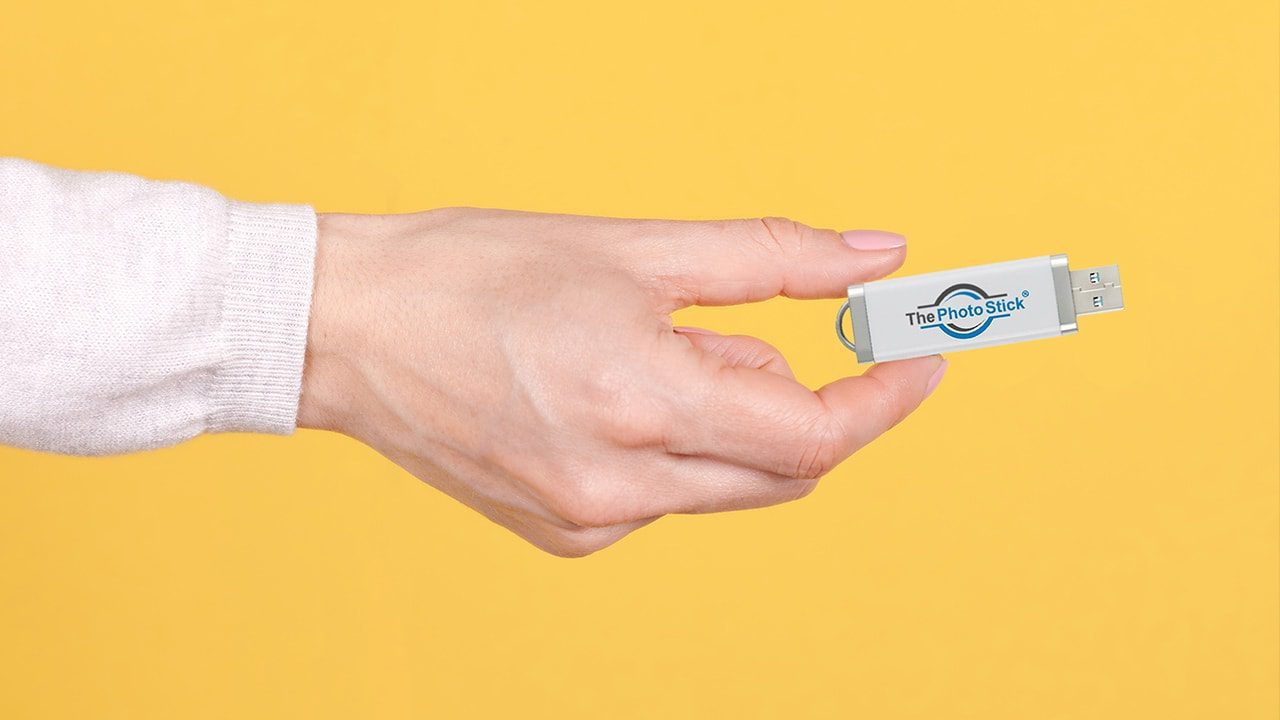
Before we dive into the setup, let’s quickly cover what you’re holding in your hands. The PhotoStick is a specialized USB flash drive with built-in software designed to seek out, organize, and back up photo and video files across your devices.
Unlike a standard thumb drive where you have to manually drag and drop files, The PhotoStick scans your hard drive, finds the hidden photos you forgot existed, automatically skips duplicates, and saves everything into one organized folder. The capacity ranges from 8GB all the way up to 128GB (which can hold roughly 60,000 high-resolution images).
The PhotoStick Quick Start Guide (By Device)
How to Use The PhotoStick on a Windows PC
Using this on a PC is incredibly straightforward. It’s compatible with everything from older Windows 7 machines up to the latest Windows 11 updates.
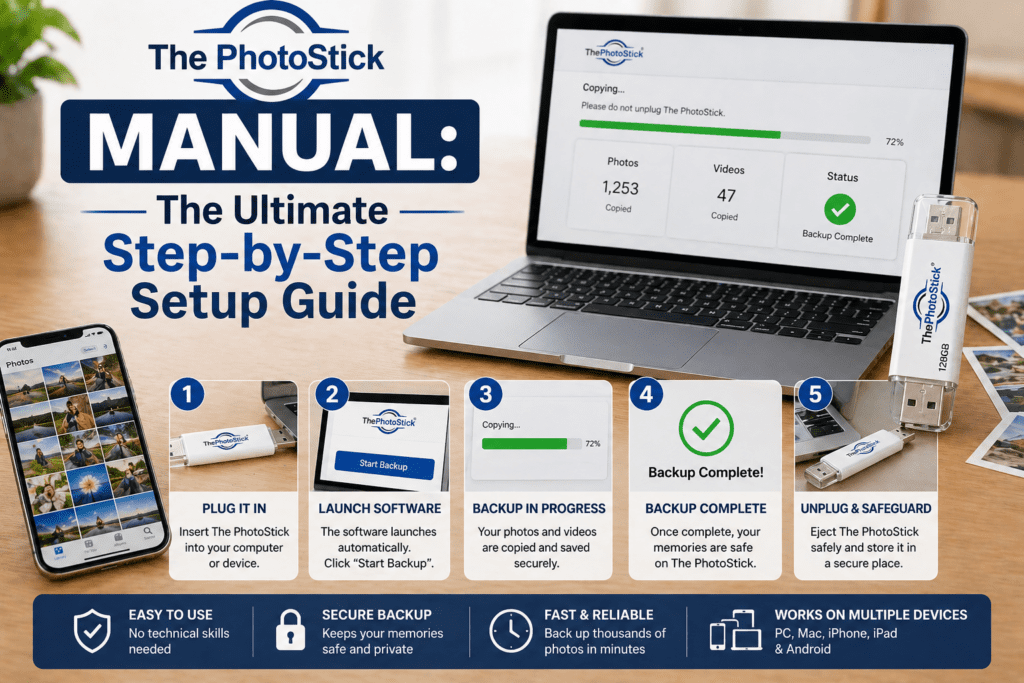
- Plug it in: Insert The PhotoStick into an available USB port on your computer.
- Open File Explorer: Wait a few seconds for your PC to recognize the drive. Open “This PC” or “File Explorer” and look for the USB drive named “PHOTOSTICK.”
- Launch the Software: Double-click the file named ThePhotoStickWindows.exe.
- Start the Backup: Once the main software interface loads on your screen, simply click the big green “Go” button.
Pro Tip: By default, it will search your entire C:\ drive for standard JPEG files. It will automatically skip program folders so it doesn’t accidentally save random application icons.
How to Use The PhotoStick on a Mac
Mac users, your process is just as easy. It works flawlessly on OS X 10.7 and later.
- Insert the USB: Plug the stick into your Mac’s USB port (you may need a USB-C adapter if you have a newer MacBook).
- Find the Icon: A shortcut icon named “PHOTOSTICK” should pop up directly on your desktop. If it doesn’t, just open “Finder” and look under your “Locations” on the left sidebar.
- Open the App: Double-click the ThePhotoStickMac file to run the program.
- Hit Go: When the window opens, click “Go” and let it scan your
/Usersdirectory.
Setting Up The PhotoStick Mobile for iPhone and Android
If you bought the mobile version (or the newer PhotoStick Omni), the setup requires a free companion app.
For iPhone (iOS):
- Open the App Store and download the free ThePhotoStick Mobile app.
- Plug the device into your phone’s charging port.
- Open the app and tap “Allow” when it asks for permission to access your photos.
- Tap “Backup Files Now” and choose whether you want to back up everything or select specific photos.
For Android:
- Download the app from the Google Play Store.
- Plug the stick into your USB-C or Micro-USB port.
- Launch the app and select “Backup Files Now.”
- Choose “Backup All” to start the automated process.
Customizing Your Default Settings
While the default “plug and play” settings are perfect for 90% of people, you can actually customize exactly what the stick looks for.
Click on the “Settings” tab in the desktop app. Here, you can:
- Change File Types: Tell it to look for PNGs, raw camera files, or specific video formats (like MP4 or MOV) instead of just JPEGs.
- Target Specific Folders: Instead of scanning your whole computer, you can direct it to only scan a specific “Vacation 2025” folder.
- Consolidate: Keep the default setting checked to consolidate all files into a single directory and skip duplicates. This is a massive storage saver!
Troubleshooting: What If It Doesn’t Work?
If your computer isn’t recognizing the stick, don’t panic. First, try plugging it into a different USB port directly on the motherboard (avoid USB hubs). If you’re on a phone and the app isn’t launching, ensure your phone’s operating system is fully updated, and try taking your phone case off—sometimes the case prevents the plug from clicking in all the way!
Read More >> PhotoStick Mobile troubleshooting guide
If you’re still stuck, you can reach out directly to support@ThePhotoStick.com with your computer model and issue.
Does The PhotoStick work on Mac?
Yes, The PhotoStick is fully compatible with Mac computers running OS X 10.7 or later. To use it, simply plug the device into your Mac’s USB port, locate the PhotoStick icon on your desktop or in the Finder, and double-click the “ThePhotoStickMac” application to start your backup.
Frequently Asked Question
Do I need WiFi to use The PhotoStick?
No, The PhotoStick operates entirely offline. You do not need an internet connection or cloud storage subscription to back up your files.
Will The PhotoStick delete photos from my computer?
No. The device only copies and backs up your files. It will not delete the original photos from your hard drive or phone unless you explicitly instruct it to do so.
Does it save videos as well as photos?
Yes. While it defaults to searching for photo files (like JPEGs), you can easily adjust the settings menu to search for and back up video formats like MP4, MOV, and AVI.
Why isn’t my iPhone recognising The PhotoStick?
If your iPhone isn’t recognizing the device, ensure you have downloaded the free companion app from the App Store. Also, check if your phone case is blocking the connector from plugging in completely.
How long does the backup process take?
The speed depends on the size of your files and your computer’s processing power. On average, it can scan and save roughly 1,000 standard photos in about 10 to 15 minutes.
Can I use one PhotoStick on multiple devices?
Absolutely. You can use a single PhotoStick to back up photos from your PC, your spouse’s laptop, and your old Mac. It will consolidate all the files onto the single drive.
Does it automatically skip duplicate photos?
Yes, one of the primary features is its deduplication software. If it finds three copies of the same image on your hard drive, it will only save one copy to the stick to save space.
What file formats does The PhotoStick support?
By default, it searches for standard image formats like JPEG, JPG, and PNG. However, through the settings menu, you can configure it to find RAW camera files, HEIC files, and various video formats.
Is there a monthly fee for The PhotoStick?
No. The PhotoStick is a one-time purchase. There are no recurring monthly fees or cloud storage subscription costs.
What is the difference between PhotoStick and PhotoStick Omni?
The standard PhotoStick is designed primarily for standard USB-A computer ports. The PhotoStick Omni comes with a universal adapter that allows it to connect to computers, iPhones, iPads, and Android devices using a single drive.