

You are trying to take a video, and the dreaded notification pops up: “iPhone Storage Full.” If you are tired of paying monthly fees for iCloud or simply do not trust cloud servers with your private family memories, a PhotoStick is one of the most reliable alternatives. These clever little USB drives allow you to back up thousands of images and videos offline, clearing up space on your phone in minutes.
However, unlike a PC where you simply plug in a USB and drag files, Apple’s iOS requires a few specific steps to get an external drive communicating with your Camera Roll.
As a tech reviewer who frequently tests digital storage solutions and smart home gadgets, I’ve transferred thousands of gigabytes using these devices. Here is the foolproof, step-by-step method to use a PhotoStick on your iPhone, including how to troubleshoot common connection issues.


How do you use PhotoStick on iPhone?
To use a PhotoStick on an iPhone, first download the free companion app specified in the instructions from the App Store. Plug the PhotoStick into your iPhone’s charging port, open the app, grant photo access permissions, and tap the “Backup” button to transfer your files.
Does PhotoStick work with iPhone?
Yes, PhotoSticks are compatible with iPhones. However, because iOS restricts direct file transfers via external drives for photos, you must use the manufacturer’s dedicated companion app to bypass these restrictions and successfully move photos from your camera roll to the USB drive.
Is PhotoStick safe for iPhone backups?
Yes, backing up your iPhone with a PhotoStick is safe. It provides a secure, offline, physical backup of your files without relying on cloud servers or requiring a Wi-Fi connection, protecting your data from online breaches.
The Step-by-Step Guide: How to Transfer Photos to PhotoStick
Before you begin, check your iPhone model. If you have an iPhone 14 or older, you need a PhotoStick with a Lightning connector. If you have an iPhone 15 or newer, you need one with a USB-C connector.
Step 1: Download the Companion App
Apple’s security system does not natively allow third-party USBs to pull from the Photos app directly.
- What to do: Scan the QR code on your PhotoStick packaging or search the App Store for the required app (common apps include Y-Disk, CooDisk, or iUSB Pro). Download it for free.
- What to expect: The app might have a slightly clunky, older-looking interface, but it is necessary for the transfer protocol.
Step 2: Connect the PhotoStick to Your iPhone
- What to do: Insert the PhotoStick directly into the charging port of your iPhone.
- Common Mistake: If you use a thick, rugged phone case (like an OtterBox), the drive’s connector might not reach deep enough into the port. You may need to remove your phone case temporarily to ensure a secure click.
Step 3: Open the App and Grant Permissions
- What to do: Launch the companion app. A pop-up will ask for permission to access your photos.
- What to expect: You must select “Allow Access to All Photos.” If you deny this, the PhotoStick cannot see your camera roll to back it up.
Step 4: Initiate the Backup Process
- What to do: On the app’s home screen, locate the button labeled “Backup,” “One-Click Backup,” or “Photo Backup.” Tap it to begin.
- What to expect: The app will begin scanning your camera roll and copying the files to the external drive.
Step 5: Verify Your Saved Files
- What to do: Once the backup hits 100%, do not delete your photos immediately! First, unplug the PhotoStick, plug it into your Mac or Windows PC, and open the folder to ensure the photos actually transferred and are fully readable.
How Do I Download Photos From PhotoStick for iPhone?
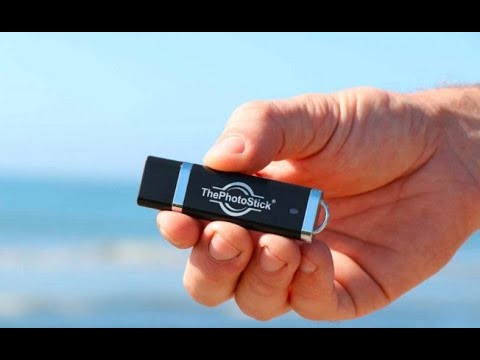
Photostick displays all photos from your iPhone storage so you can download photos from iPhone to Photostick. Follow the steps:
- First, connect the Photo Stick iPhone variant to your
- Open the installed Photostick app.
- Now, enter into the “Backup files now” from the app’s main screen.
- You can download all files or selected files to the Photo Stick.
- In the case of all file backup, it stores files removing duplicates. You can store individual files from the backup option.
Real-Use Experience: What to Actually Expect


In my recent tests transferring about 2,000 photos and 50 videos using a standard Lightning PhotoStick:
- Setup Time: Under 3 minutes.
- Backup Speed: Lightning ports are capped at USB 2.0 speeds. Transferring 10GB of data took roughly 15-20 minutes. It is not instantaneous. If you have a massive library, plug your phone into a wireless charger while it runs, as the drive uses your phone’s battery.
- The App Experience: The third-party apps get the job done, but they can occasionally freeze if you try to multitask. Leave the app open on your screen while the backup runs.
Troubleshooting: PhotoStick Not Working on iPhone?
If your drive isn’t connecting, try these quick fixes:
- “Device Not Recognized”: 90% of the time, pocket lint is blocking the connection, or your phone case is in the way. Clean your charging port with a wooden toothpick and remove the case.
- App Keeps Crashing: You are likely running out of RAM. Force-close all other apps on your iPhone, restart the phone, and try the backup again.
- Backup Freezes Midway: This usually happens if the drive runs out of storage space or if the PhotoStick formats improperly. Ensure your drive has enough GB capacity for your camera roll.
PhotoStick vs. Cloud Storage
Is a physical backup really better than the cloud? Here is how they compare.
| Feature | PhotoStick (External Drive) | Apple iCloud | Google Photos |
| Cost | One-time purchase ($30-$60) | Monthly subscription | Monthly subscription |
| Internet Required? | No (Offline backup) | Yes (Wi-Fi/Cellular) | Yes (Wi-Fi/Cellular) |
| Data Privacy | High (Physical possession) | Moderate (Cloud servers) | Moderate (Cloud servers) |
| Ease of Use | Moderate (Requires plugging in) | High (Automatic) | High (Automatic) |
| Risk of Loss | Can be physically lost/broken | Account hacking / lockouts | Account hacking / lockouts |
The Verdict: Use a PhotoStick if you want total control over your privacy without monthly fees, or if you frequently travel without reliable Wi-Fi. Stick to iCloud if you prefer a completely hands-off, automated daily backup.
How External Storage Works with iOS:
Unlike Android devices that treat USB drives like native folders, Apple’s “sandboxed” architecture isolates app data for security. This is why the third-party app acts as a bridge, utilizing iOS’s Share Sheet APIs to pull the photos from the encrypted Apple ecosystem and write them onto the FAT32/exFAT formatted USB drive.
Who Should NOT Use a PhotoStick:
If you are highly prone to losing your keys or wallet, relying solely on a thumb drive for your only copy of family photos is risky. Flash memory can corrupt, and tiny USBs are easily misplaced. A PhotoStick is best used as a secondary physical backup alongside a primary digital storage method.


Where to Buy Photostick?
The Photostick is officially sold on the merchant’s website. What if you could return it if you’re not satisfied? They are providing 40% off with 60 days satisfaction guarantee.
For the iPhone, you can get the 32 GB version only with cloud service. You do not need to pay subscription charges for cloud service.
Final Thoughts
If you seek comfort, practicality and simplicity, PhotoStick is for you. The Photostick has a different version for Windows PC, Android and iOS devices. Here, I have discussed how to use photostick for iphone. IPhone has fixed storage capacity. So, the photo stick will be the best solution to avoid “storage full” and file losing problems. Its free cloud service ensures a stress-free backup of your memories.